Images, videos and files
Upload the pictures, videos and documents the Portal shows and offers for download.
Licence: Images and Files are on every Portal; Videos come with Content Management (content-management).
Backend Roles: every Portal editor.
The Portal keeps its uploads in three collections under "Content Management":
| Collection | Holds | Used by |
|---|---|---|
| Images | Pictures | Heroes, Layout Blocks, header images, cards, the logo and the favicon |
| Videos | Videos | Layout Blocks that play a video |
| Files | PDF and ZIP files, pictures and videos to download | The downloads rows of a Downloads block |
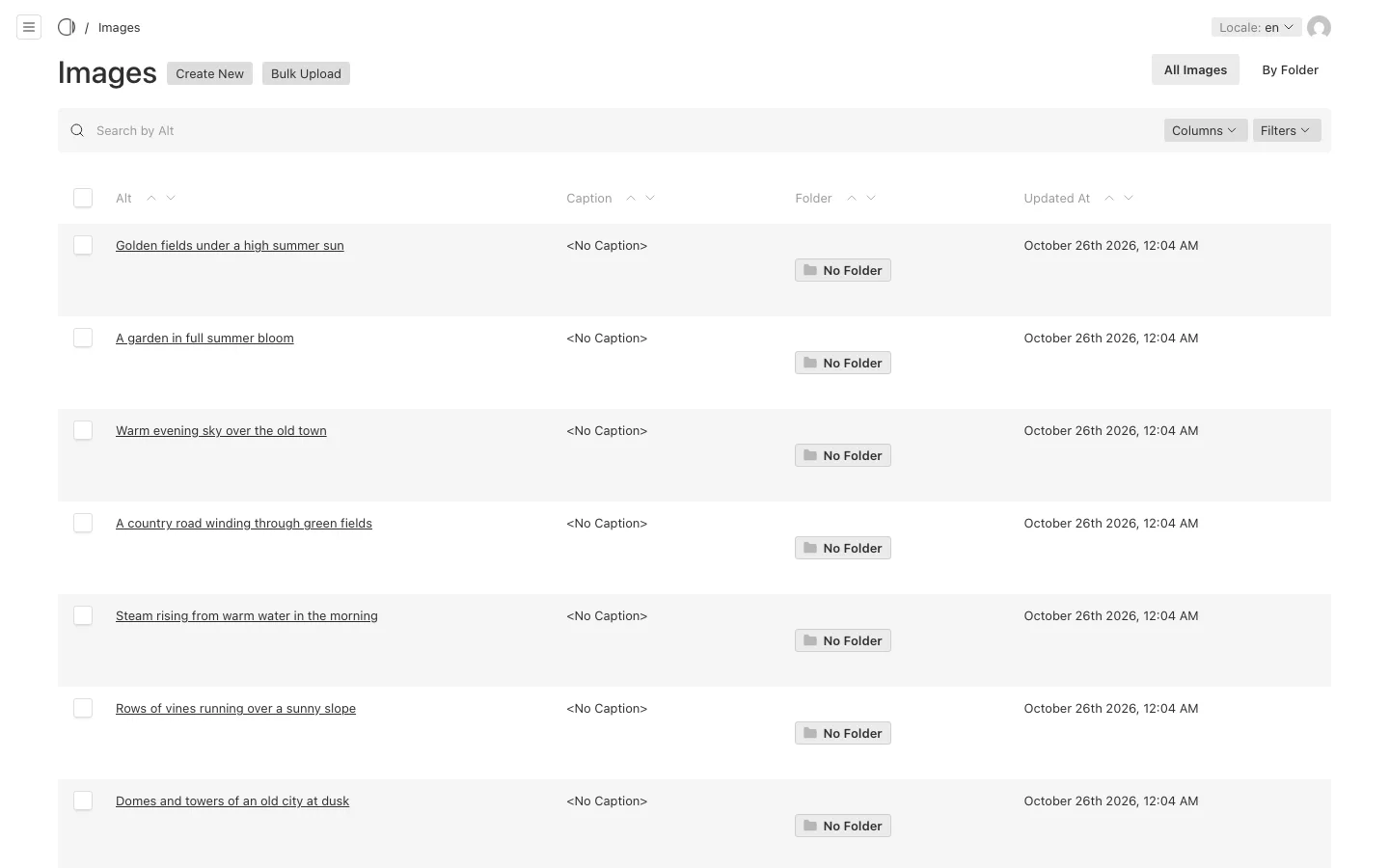
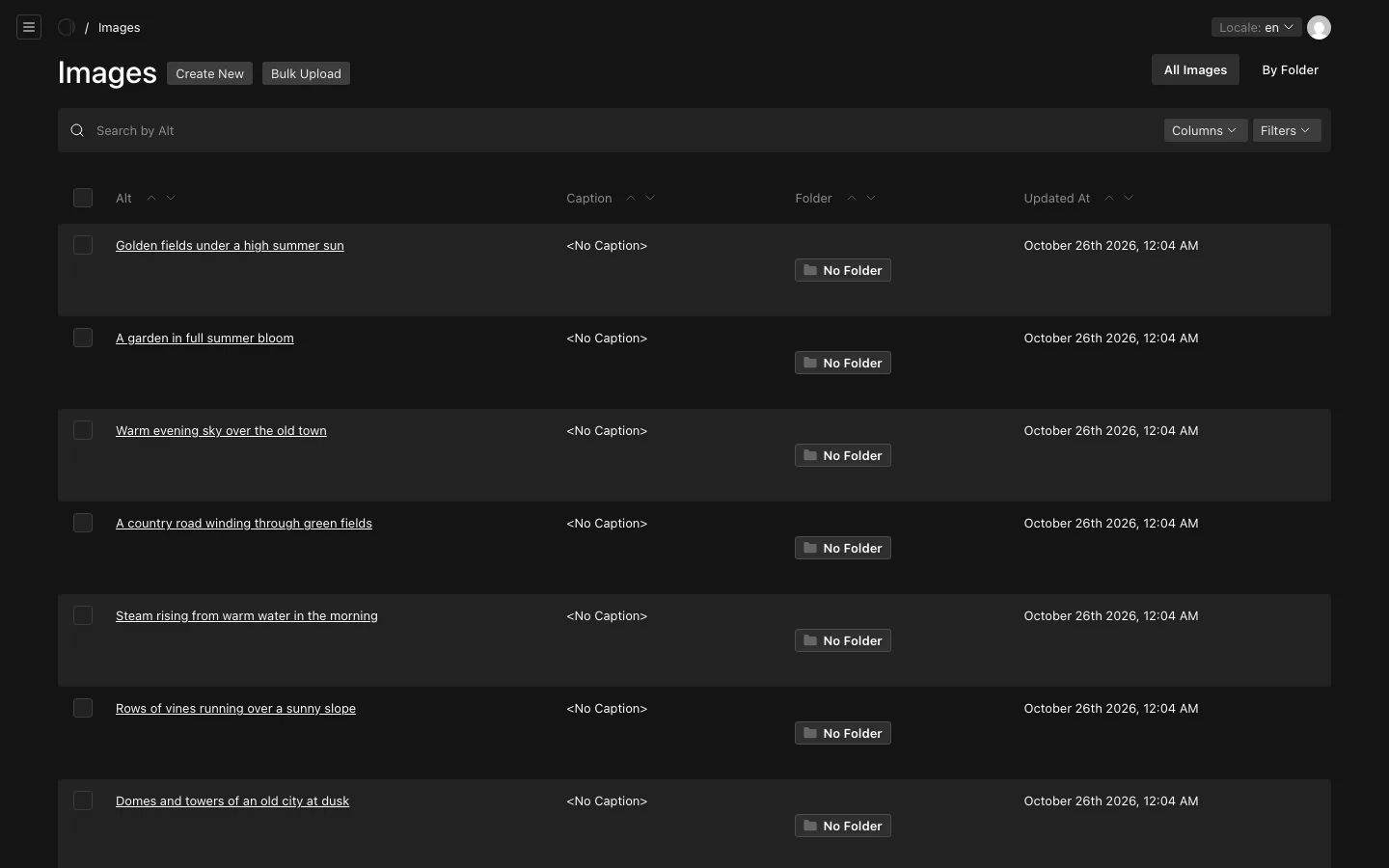
Upload a picture
- Open "Images" and choose "Create New", or choose "Create New" directly in the image field of a page.
- Drop the file or choose it from your computer.
- Enter the "Alt" text: what the picture shows, for people who cannot see it. It is required.
- Optionally, write a "Caption", which can differ per language.
- Choose "Save".
The Portal makes the sizes it needs, from a thumbnail to a large picture and the picture for shared links, so upload one good, large version. To use a picture that is already uploaded, choose "Choose from existing" in the image field.
Offer a file for download
A Downloads block lists files to download. Each row has its own title, description, "Authorization Level" and file, so one block can offer a public brochure and a members-only form side by side.
- Upload the file under "Files", or from the block's file field.
- In the page's "Page Content", add a Downloads block and a row for each file.
- Publish the page.
The Portal shows each file with the icon of its type and opens or downloads it as the type requires.