Book a travel
Send a booking request for a travel, step by step.
Licence: Travelling (travelling). Not every Portal offers travels.
On a travel's page, "Book" opens a booking request. A booking request is not yet a booking: it goes to the organisation's booking office, which checks it and gets back to you. Nothing is reserved until they confirm it.
Send a booking request
- Open the travel and choose "Book".
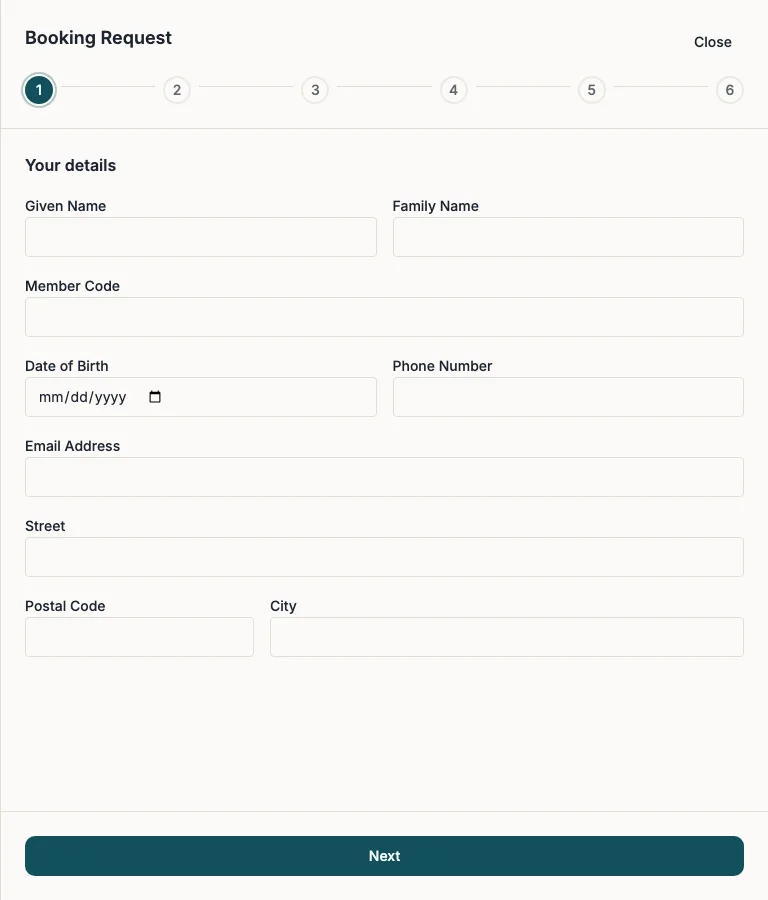
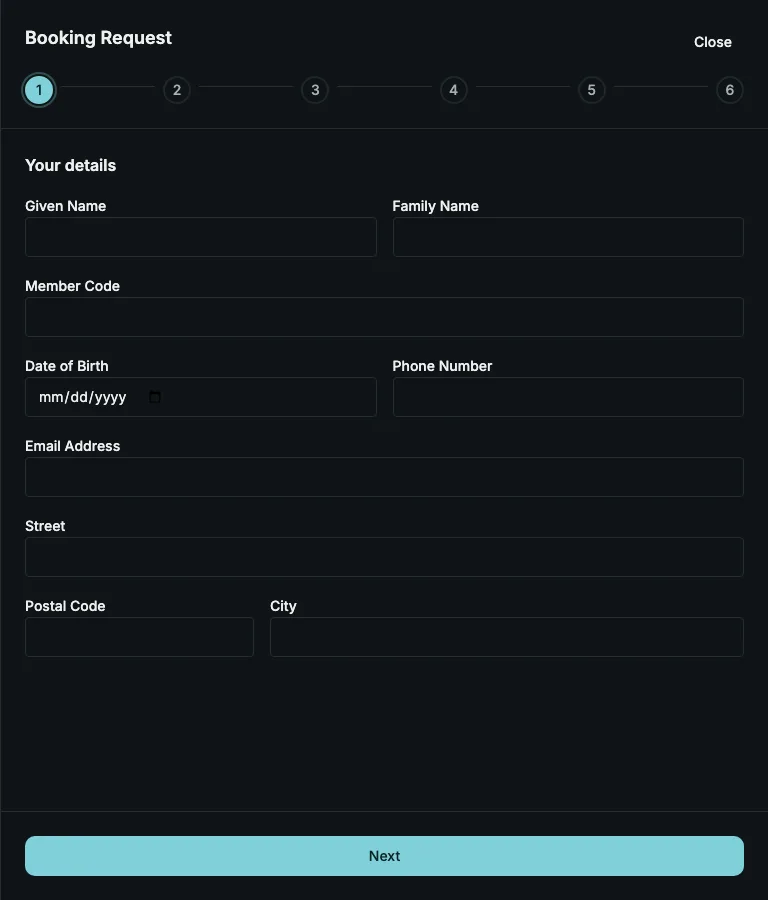
- Under "Your details", enter your "Given Name", "Family Name", "Member Code", "Date of Birth", "Phone Number", "Email Address", "Street", "Postal Code" and "City", and choose "Next".
- Under "Your travel", choose your "Date of Arrival" and "Date of Departure". Add a "Remark" if you like, and choose "Next".
- Under "Your accommodation", enter the number of "Adults (including you)" and "Children" and, where the travel offers them, choose the room types. Choose "Next".
- Under "Who else is coming", enter the given name, family name and date of birth of each person travelling with you, and choose "Next".
- Under "Check and send", check your request, tick the statements you are asked to confirm, such as the privacy policy, and add a "Message to the Booking Office" if you like. Choose "Save".
The last step, "Request received", shows your reference, for example BR-2610-5178K. You also receive a confirmation by email. Quote the reference when you contact the booking office; replying to the confirmation email reaches it.
Good to know
- Your member code proves that you are a member. Some Portals call the field differently or explain where to find it, and on some it is optional.
- Dates: some travels can be requested only for arrivals in a certain period, or a certain number of days in advance, and a stay has a minimum length. The form tells you if a date cannot be chosen.
- Booking switched off: if "Book" is shown but cannot be pressed, booking is closed for this travel's programme at the moment; the note beside the button says why.
- If your membership cannot be confirmed, the request is not sent. See Write to the membership office.