Redeem a benefit
Get a benefit's voucher code and use it at the partner.
Licence: Benefits (benefits). Not every Portal offers benefits.
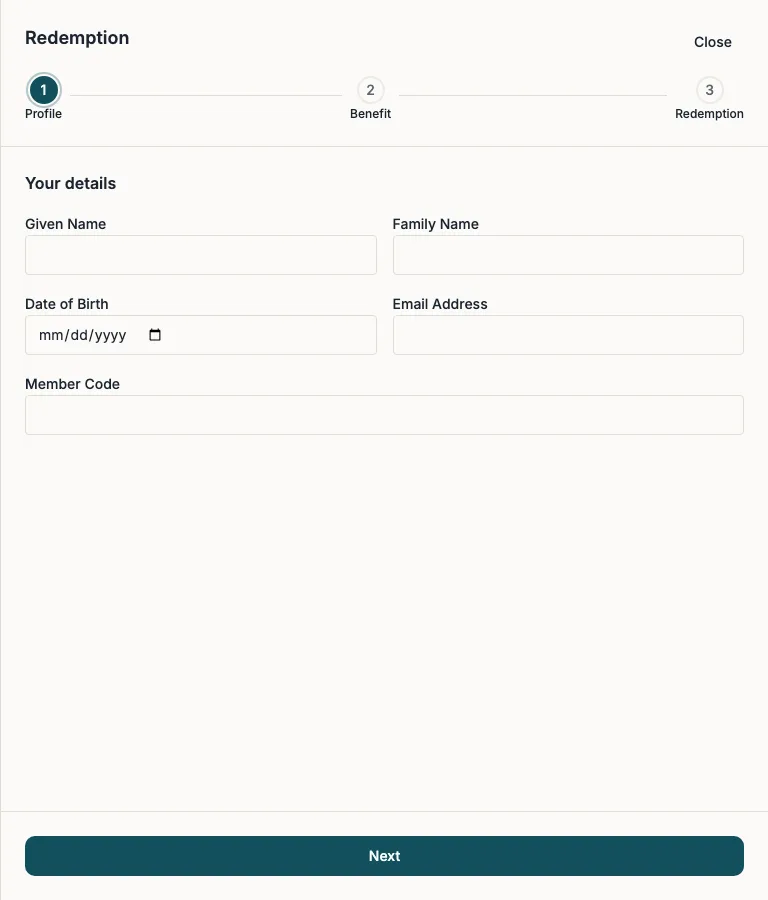
A benefit is an offer from a partner of the organisation, such as a discount or a voucher. On the benefit's page, "Redeem" gives you its voucher code in three steps: "Profile", "Benefit" and "Redemption".
Redeem a benefit
- Open the benefit and choose "Redeem".
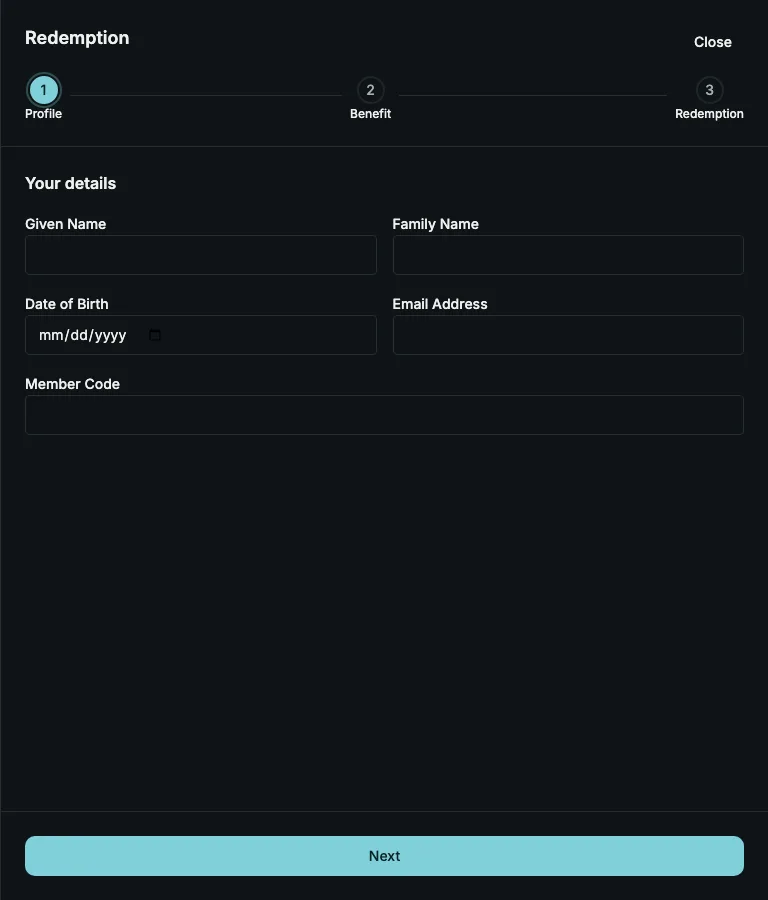
- Under "Your details", enter your "Given Name", "Family Name", "Date of Birth", "Email Address" and "Member Code", and choose "Next".
- Under "Your benefit", check that it is the benefit you want, tick that you have read the privacy policy and agree to it, and choose "Save".
- Under "Your voucher code", use the code in the way the benefit offers.
The last step shows your reference, for example RD-2610-GJTDR, and up to three ways to use the code:
- "Show the code": the code as text and as a QR code, to show at the partner's till.
- "Redeem at the partner": a link to the partner's website, with the code ready to use.
- "Have the code emailed": write a message, and the partner receives it with your code; you receive a copy.
If a benefit has codes for new and for existing customers, you are asked "Are you already a customer?" first.
Good to know
- Your code is recorded as given to you the moment it is shown, whether or not you use it.
- If "Redeem" is shown but cannot be pressed, the organisation has not opened redeeming yet; the note beside the button says more.
- If your membership cannot be confirmed, no code is shown. See Write to the membership office.