Documentation/Studio
Back
  • Getting started
    • Key concepts
    • Sign in
    • Create and switch organisations
  • Registers
    • Create and change a register
    • Upload and download entries
    • Add, edit and deactivate entries
    • Groups
    • Challenge codes
    • Connect and test an external register
    • Register activity
  • Membership definition
    • Add and order register assignments
    • Filters and outcomes
    • Preview before saving
    • Save and version history
  • Member code query
  • Members directory
    • Find a member
    • Look up the checks of a member code
    • Deactivate a membership
  • Communities
    • Create, rename and delete a community
    • Filter by register, status, groups and claims
  • Frontends
    • Create a frontend
    • Frontend keys
    • Sign-in settings
    • Sign-in branding
  • Login with appsolut
    • Sign-up and onboarding
    • Sign-in and sign-out
    • Support requests
  • Frontend users
    • Find a frontend user
    • Membership and activations
    • Block a frontend user
    • Export a frontend user's data
    • Disconnect a frontend
  • Membership check
    • Check modes
    • Results and the check log
    • Rate limits
    • Grace rule
  • Organisation settings
    • Organisation profile
    • Studio users and roles
    • Billing
    • Roadmap and feature requests

Create and switch organisations

Set up an organisation and move between the organisations you administer.

Studio roles: every Studio user can create an organisation and switch between their organisations. Whoever creates an organisation becomes its "Owner".

Everything you do in the Studio happens in one organisation: its registers, communities and frontends are its own, and no other organisation sees them. A Studio user can belong to several organisations, with a Studio role in each.

Create an organisation

  1. Open the menu at the top of the sidebar.
  2. Choose "Switch Organisation", then "Create an Organisation".
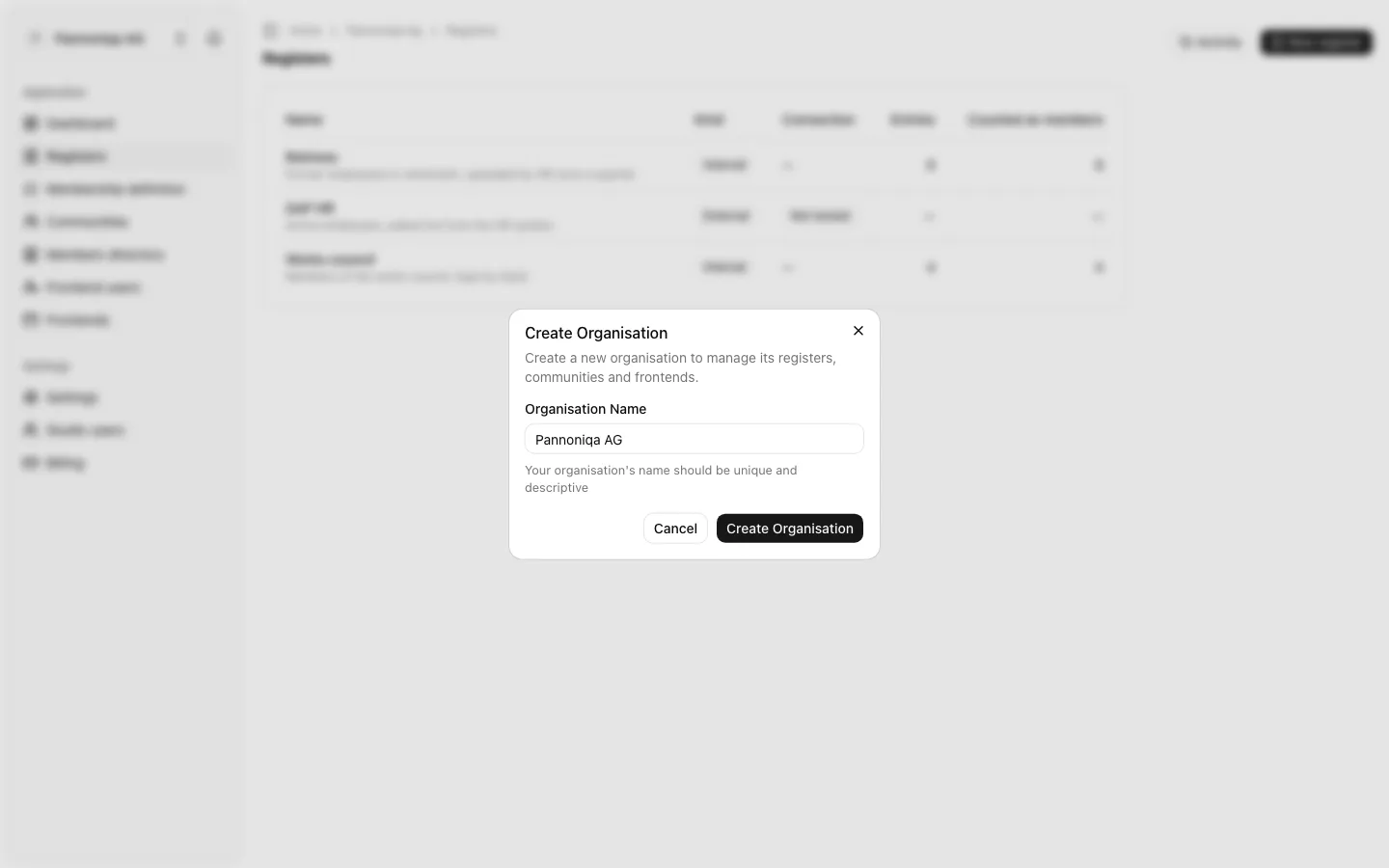
  3. On "Create Organisation", enter the "Organisation Name", for example "Pannoniqa AG".
  4. Choose "Create Organisation".
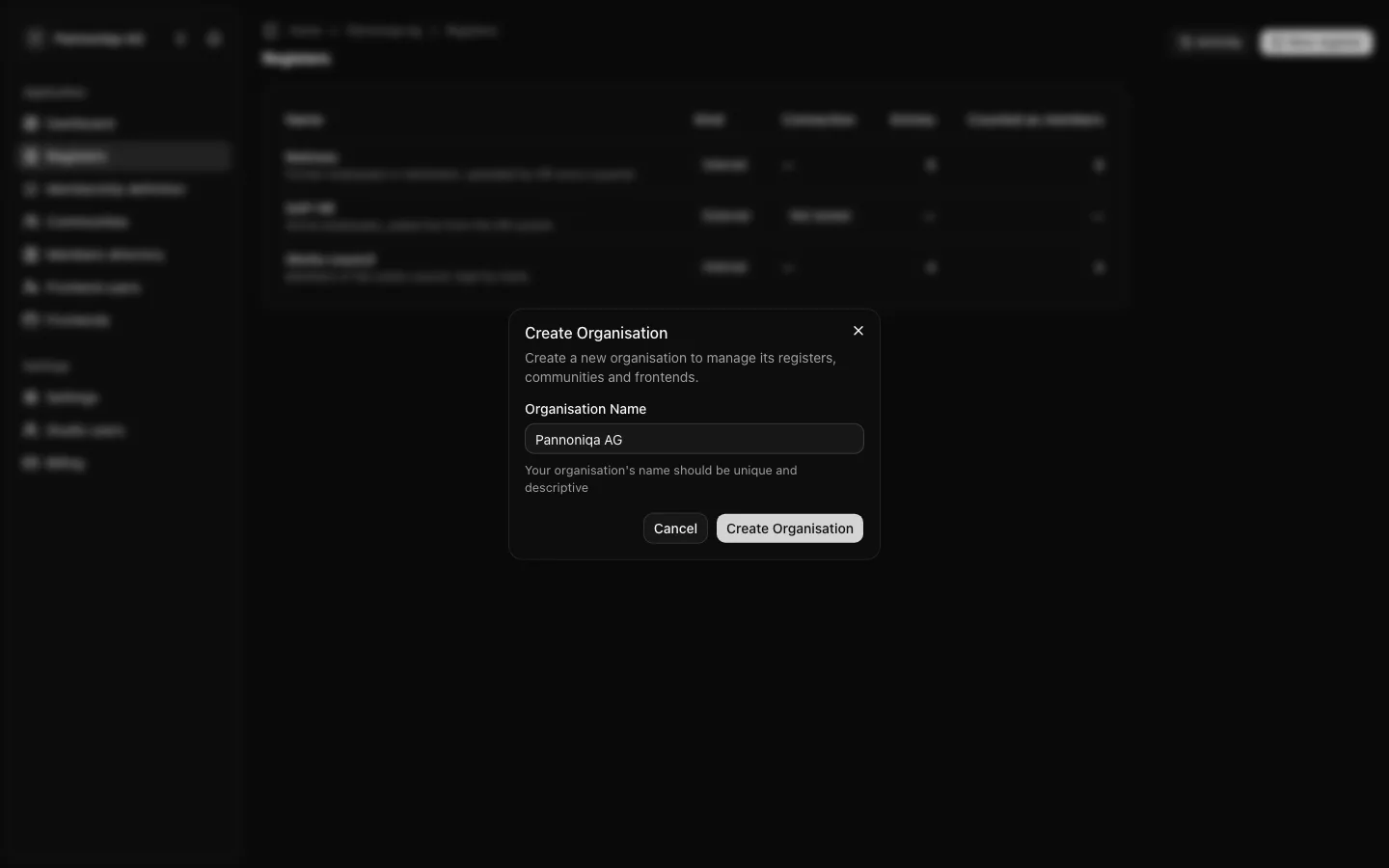
The Create Organisation dialog with the organisation name Pannoniqa AGThe Create Organisation dialog with the organisation name Pannoniqa AG

The Studio opens the new organisation on its "Dashboard". Its address uses the organisation URL, made from the name (for example pannoniqa-ag). Only when the name has nothing the Studio can turn into an address does the form ask for an "Organisation URL" as well.

Next, invite the Studio users who run the organisation with you under "Studio users", and set up the registers your members come from.

Switch organisations

  1. Open the menu at the top of the sidebar. It shows the organisation you are in.
  2. Choose "Switch Organisation".
  3. Choose the organisation, or "Personal Account" for your own account settings.
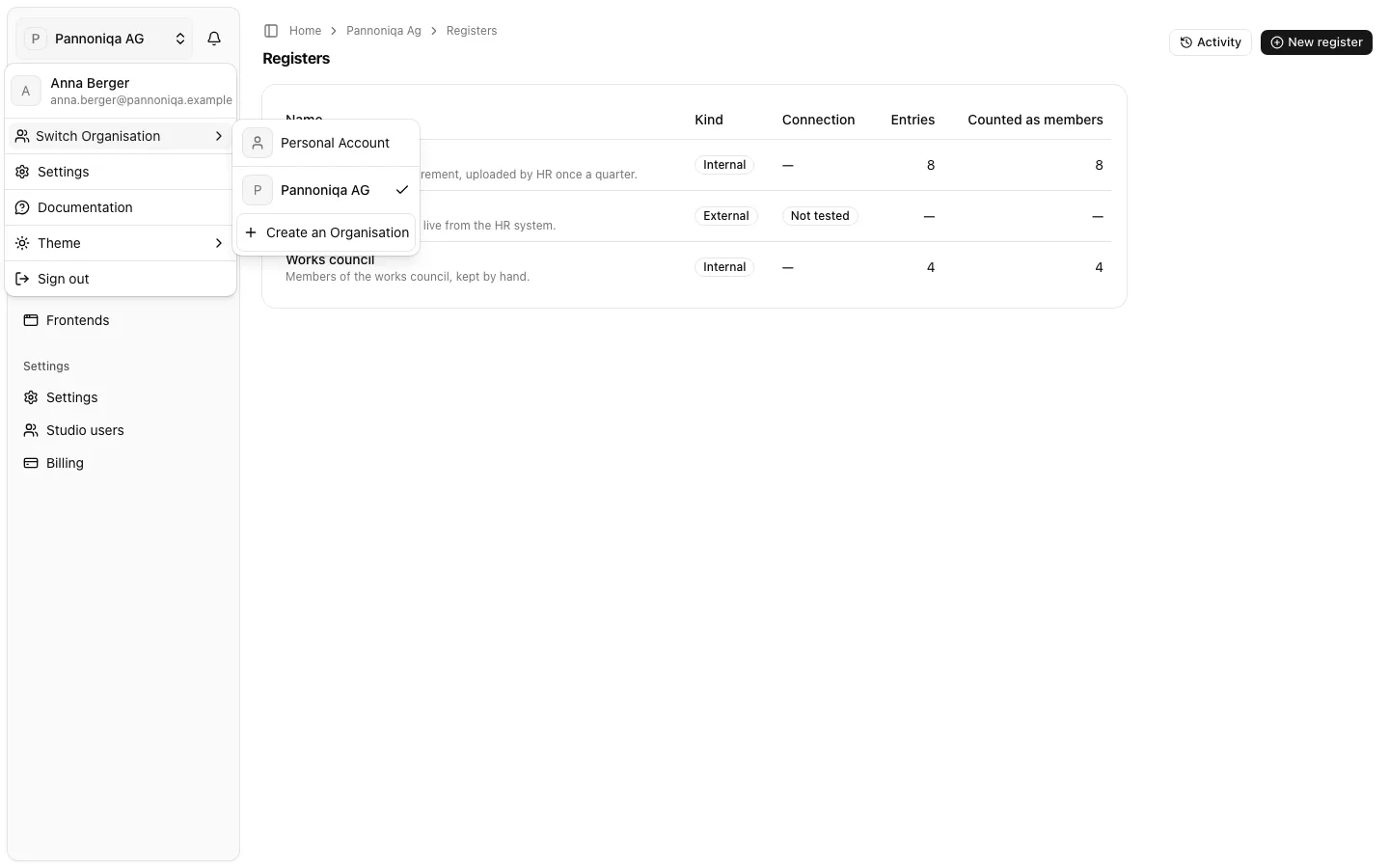
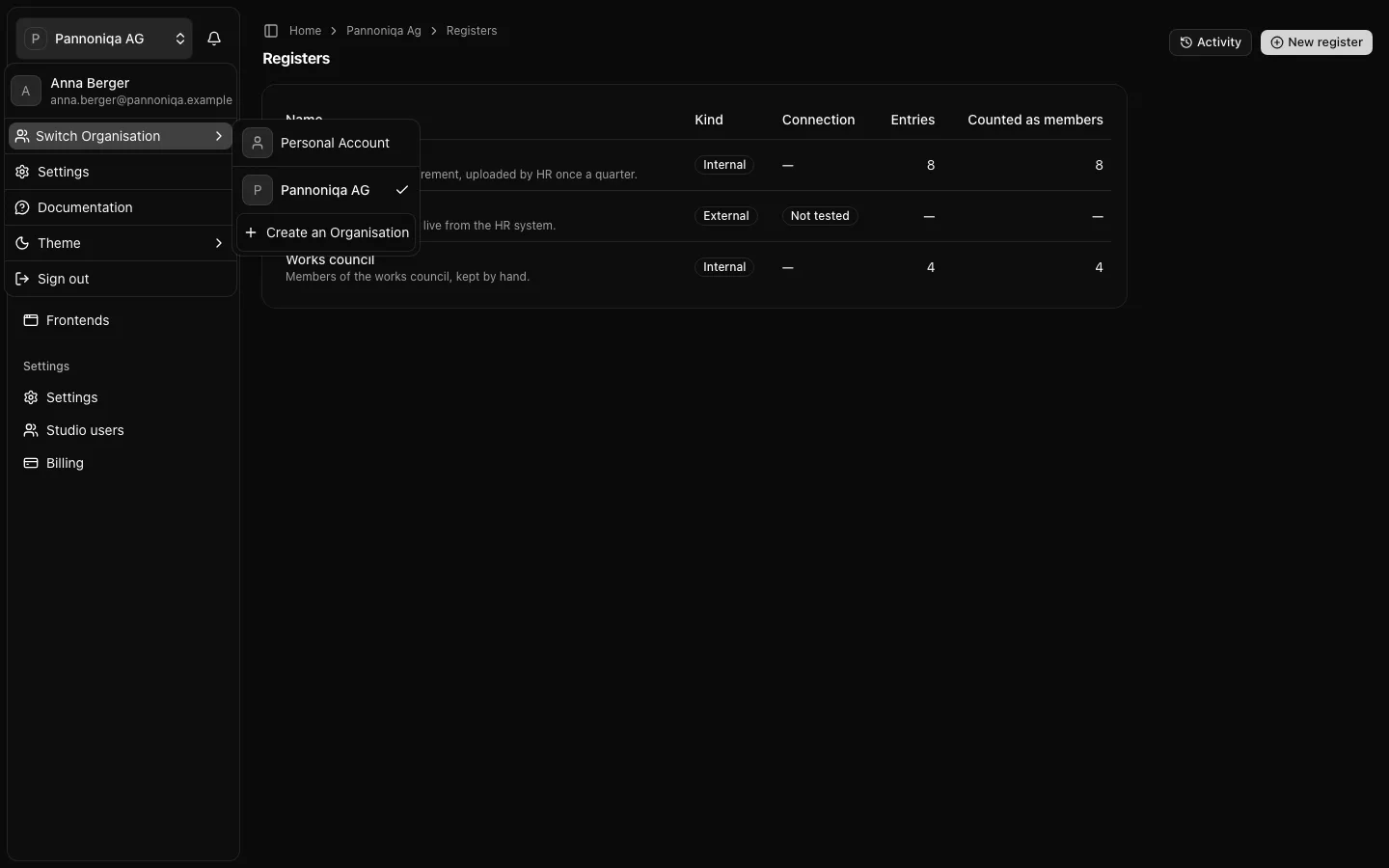
The menu at the top of the sidebar, opened at Switch Organisation, with Personal Account, Pannoniqa AG and Create an OrganisationThe menu at the top of the sidebar, opened at Switch Organisation, with Personal Account, Pannoniqa AG and Create an Organisation

The sidebar then shows only the pages your Studio role in that organisation allows. A Studio user with the "Editor" role, for example, does not see "Registers".