Sign in
Sign in to the Studio and accept an invitation to an organisation.
Studio roles: every Studio user.
You sign in to the Studio with your email address and password. Your Studio account is yours alone: it is not a frontend user account, and signing in to a frontend such as the "Pannoniqa Portal" does not sign you in to the Studio.
Sign in
- Open the Studio and choose "Sign In".
- On "Sign in to appsolut ONE", enter your email address and password.
- Choose "Sign in with Email".
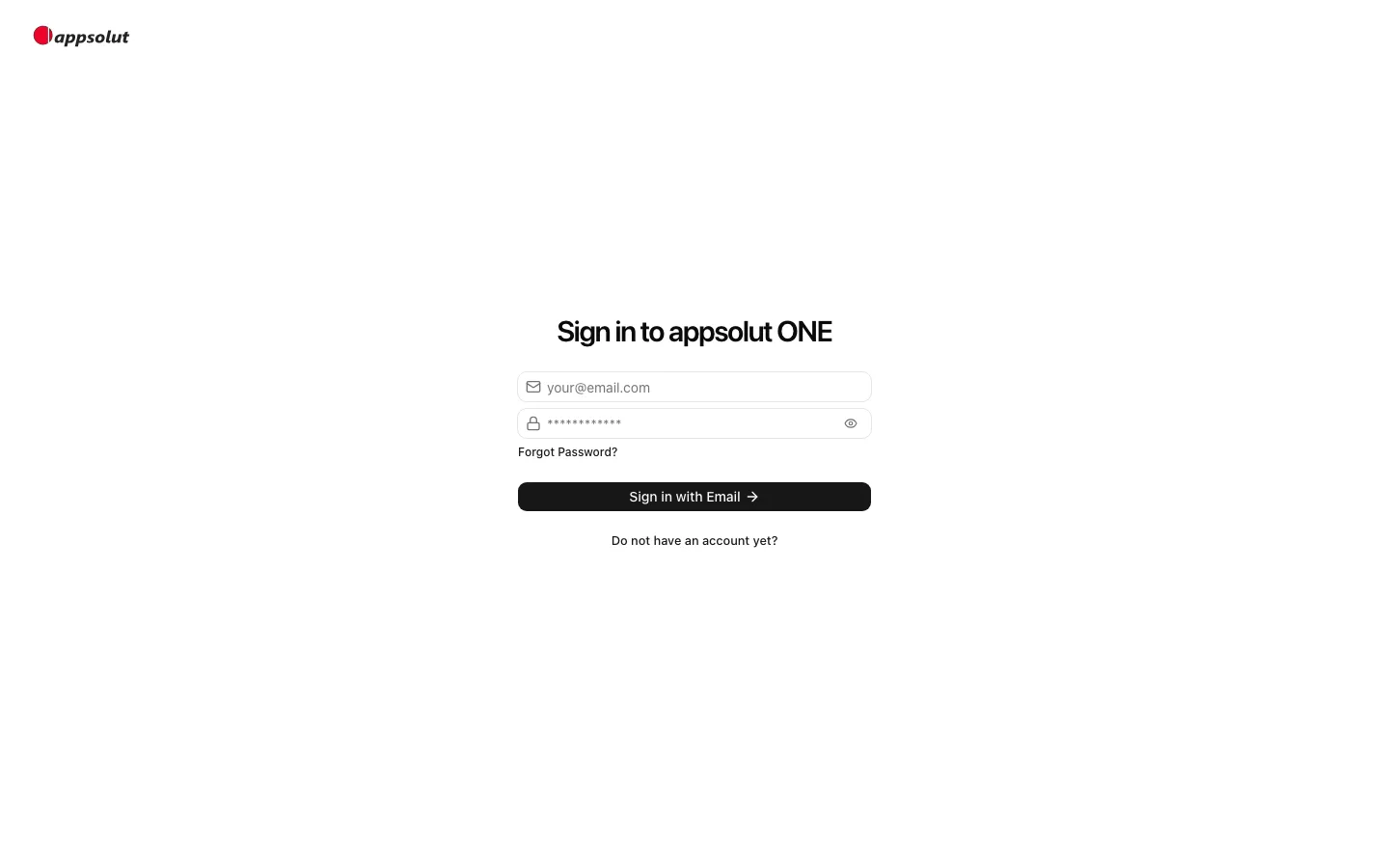
The Studio opens on "Home". From there you open an organisation, see Create and switch organisations.
If you forgot your password, choose "Forgot Password?", enter your email address and choose "Reset Password". You receive an email with a link to set a new password.
Multi-factor authentication
If you set up multi-factor authentication for your account, the Studio asks for a code after your password, on "Verify your account". Enter the 6-digit code from your authenticator app and choose "Submit Verification Code".
To set it up, open the menu at the top of the sidebar, choose "Switch Organisation" and then "Personal Account", and open "Settings". In the "Multi-Factor Authentication" section, choose "Setup a new Factor" and scan the QR code with your authenticator app.
Accept an invitation
Studio users join an organisation by invitation. A Studio user of the organisation invites you by email with a Studio role, and the invitation lapses after 7 days.
- Open the link in the invitation email.
- Sign in, or, without a Studio account yet, create one with the email address the invitation was sent to.
- On "Join Pannoniqa AG", choose "Accept Invitation".
The organisation now appears in your organisations, with the Studio role you were invited with. If the page says "Invite not found or expired", ask the Studio user who invited you to renew the invitation.