Find a member
Search and filter the members directory, and read a member's page.
Studio roles: "Owner", "Administrator" and "Community manager".
Search and filter
- Open "Members directory".
- Search with "Search by member code, name or email". "Email addresses are searched too, though they are not shown here."
- Narrow the list with the filters "Status", "Register", "Group" and "Frontend". "Clear filters" removes them.
By default the list shows "All but deactivated and anonymized". Choose "Deactivated" or "Anonymized" under "Status" to see those. Sort by "Name", "Member code" or "Last verified" by choosing the column's head.
Read a member's page
Choose a member's name. The member's page has three parts.
"Membership": "The organisation membership with the names its register gives, as the last membership check left it." It shows the "Name", "Member code" and "Status", the "Register" and "Register entry" it is linked to ("Open entry PQ-10017" opens the entry in its register), the "Register that decided" where that is another one, the "Groups", the "Stored claims", the "Communities", the "Definition of the last check", and when it was "Last checked", "Last verified" and "Created".
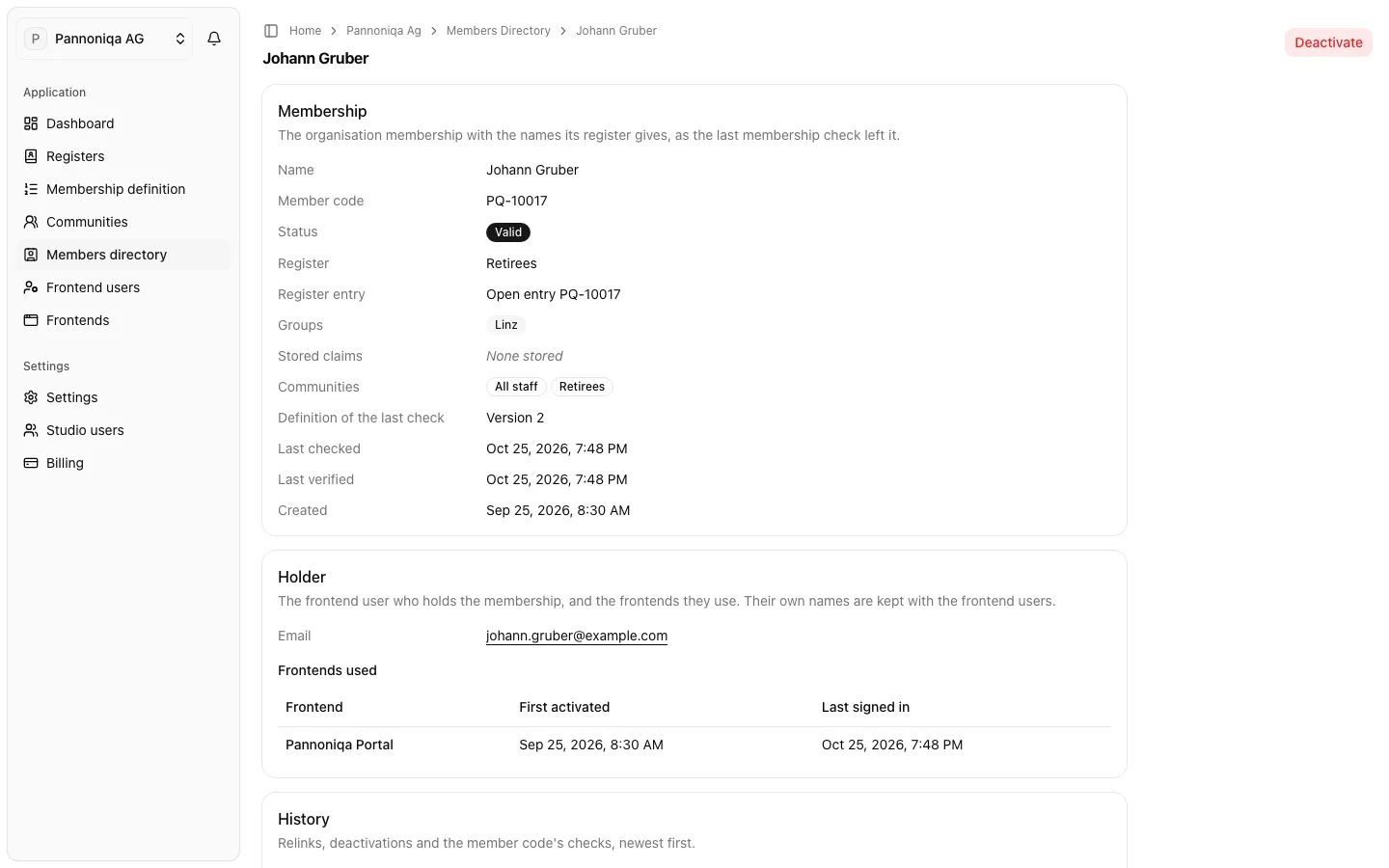
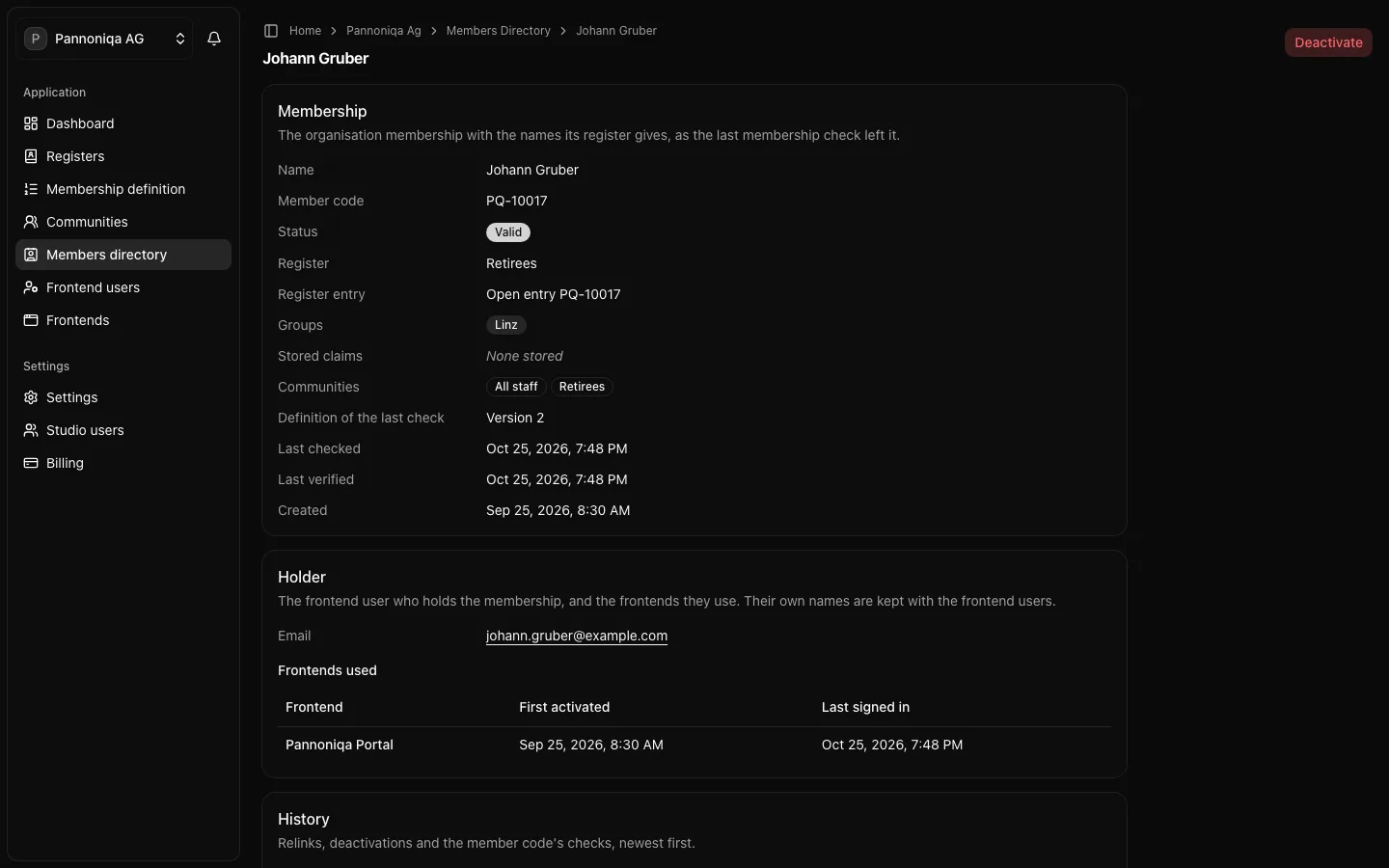
"Holder": "The frontend user who holds the membership, and the frontends they use." It shows the holder's "Email" and, under "Frontends used", each frontend with "First activated" and "Last signed in". An "Owner" or "Administrator" can open the frontend user from the email. The holder's own names are kept with the frontend users, not here.
"History": "Relinks, deactivations and the member code's checks, newest first." Each event shows who caused it, a Studio user or "Automatic". The latest checks of the member code are listed too; "Open in the check lookup" shows all of them.
Typical questions
- "Why can't Johann Gruber use the Pannoniqa App?" His communities are "All staff" and "Retirees"; the App's community is "Active employees".
- "Why is this member not valid?" The status says why, for example "Not valid: not found". The history shows the check that found it.
- "A person says they cannot become a member at all." They have no membership yet. Use the check lookup with their member code.