Add, edit and deactivate entries
Keep an internal register by hand: add an entry, change it, and switch it off or on again.
Studio roles: "Owner", "Administrator" and "Community manager".
Pannoniqa AG keeps its "Works council" register by hand: a few people, changed whenever the council changes. For a register of hundreds of people, an upload is quicker.
Find an entry
Open the register. Under "Entries", search with "Search by member code or name". Deactivated entries are listed too; clear "Show deactivated entries" to hide them.
Add an entry
- Choose "Add entry".
- Enter the "Member code". "Only the member code is required. It must be unique in this register."
- Fill in what you know: "First name", "Last name", "Birth date", "Phone", "Street", "Zip", "City", "Status", "Groups" and "Membership start". For "Groups", type a group and press Enter.
- Leave "Challenge required" on if onboarding should ask for the entry's challenge code, or switch it off.
- Choose "Add entry".
Give the names and the birth date as the person will type them when they onboard: the membership check compares them where the entry holds them.
Edit an entry
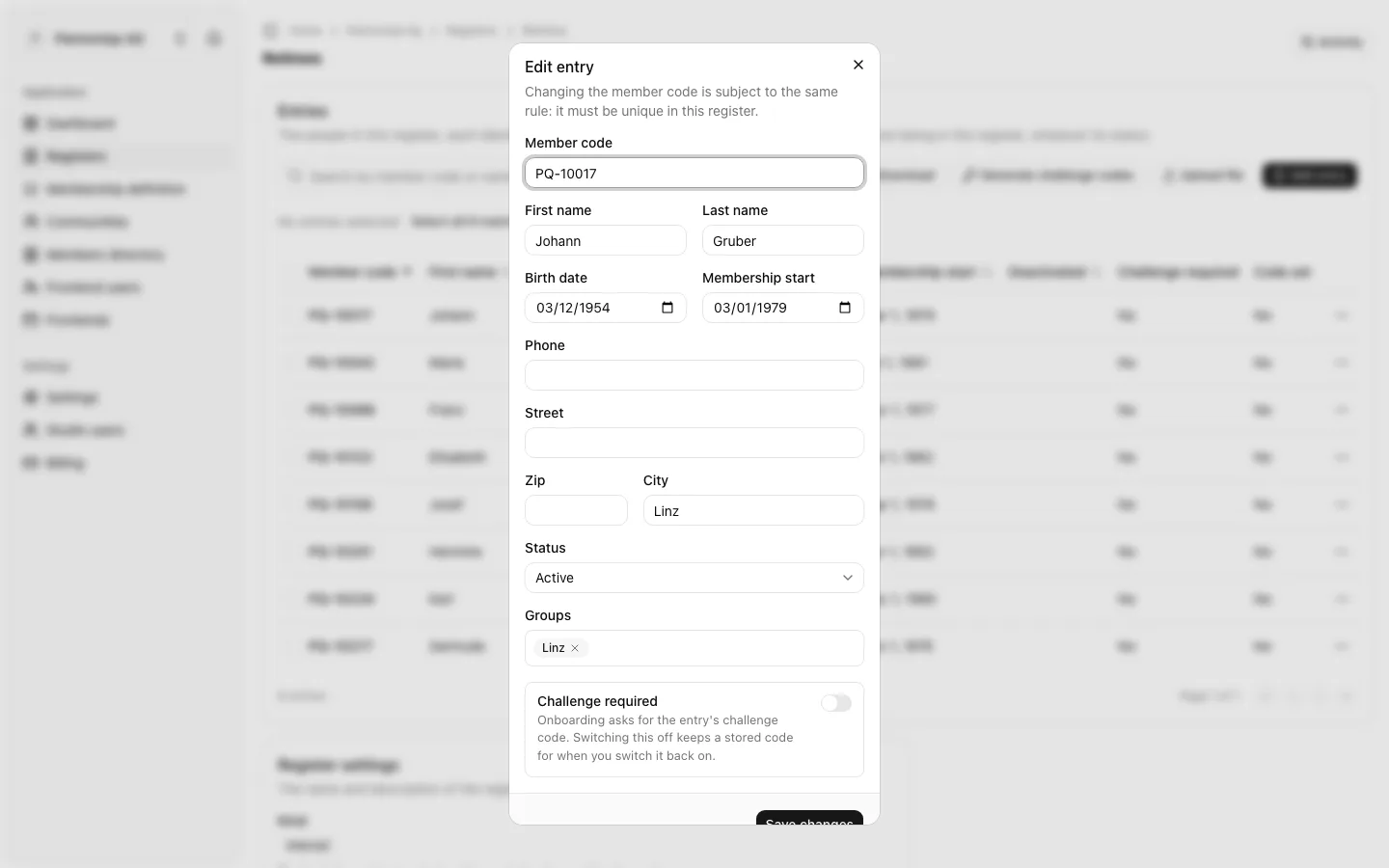
- In the entry's row, open its actions menu and choose "Edit".
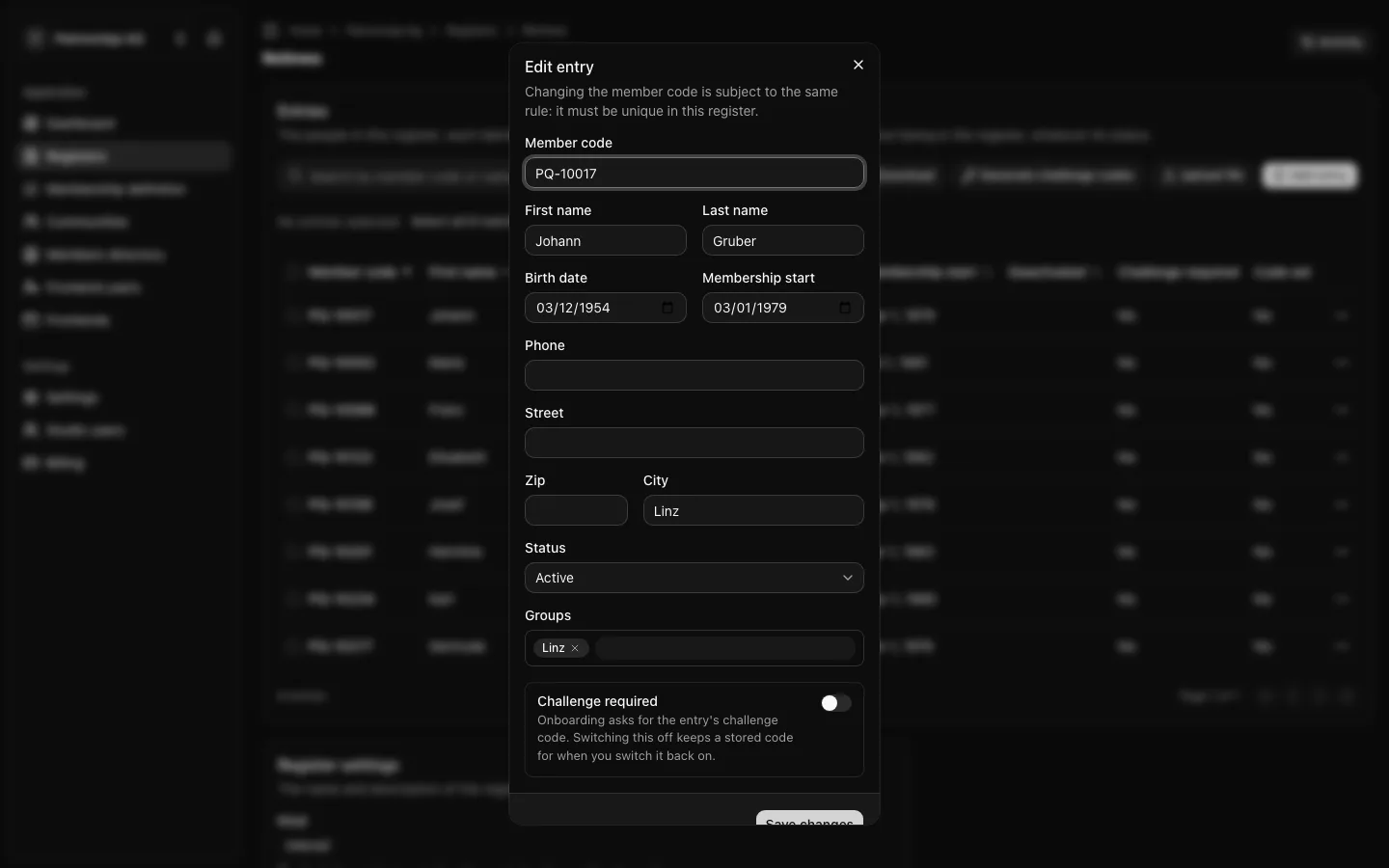
- Change what you need in "Edit entry". A changed member code must be unique in the register too.
- Choose "Save changes".
A member picks up the change at their next membership check, which runs at every sign-in.
Deactivate an entry
Entries are never deleted. When a person should no longer qualify through this register, deactivate their entry:
- In the entry's row, open its actions menu and choose "Deactivate".
- Confirm with "Deactivate".
"Entry PQ-20412 will count as not being in this register. Its status stays as it is, and you can reactivate it at any time." At the person's next membership check, the next register of the membership definition is asked; if none decides, the person is no longer a valid member.
To switch the entry back on, open its actions menu and choose "Reactivate".
Every addition, change, deactivation and reactivation appears in the register activity, with the values before and after.