Studio users and roles
What each Studio role may do, how to invite Studio users, and how to change roles or remove Studio users.
Studio roles: every Studio user sees the list. Inviting needs "Owner" or "Administrator"; changing roles and removing Studio users need "Owner"; transferring the ownership needs the primary owner.
A Studio user holds one Studio role in each organisation they belong to. The role decides which pages of the organisation they see and what they may change.
The Studio roles
| Studio role | May do |
|---|---|
| "Owner" | Everything, including the organisation's name and logo, billing, changing Studio roles and removing Studio users (other owners only by the primary owner). |
| "Administrator" | Runs the Studio: registers, membership definition, member code query, members directory and communities; frontends and sign-in branding; frontend users; inviting Studio users. Not the organisation's name, billing or roles. |
| "Community manager" | Registers, membership definition, member code query, members directory and communities. |
| "Frontend manager" | Frontends, their keys and sign-in settings, the sign-in branding, and disconnecting a frontend. |
| "Frontend user manager" | Frontend users: find, block, unblock and export them. |
| "Editor" | Sees the organisation's dashboard and settings, but none of its registers, communities or frontends. |
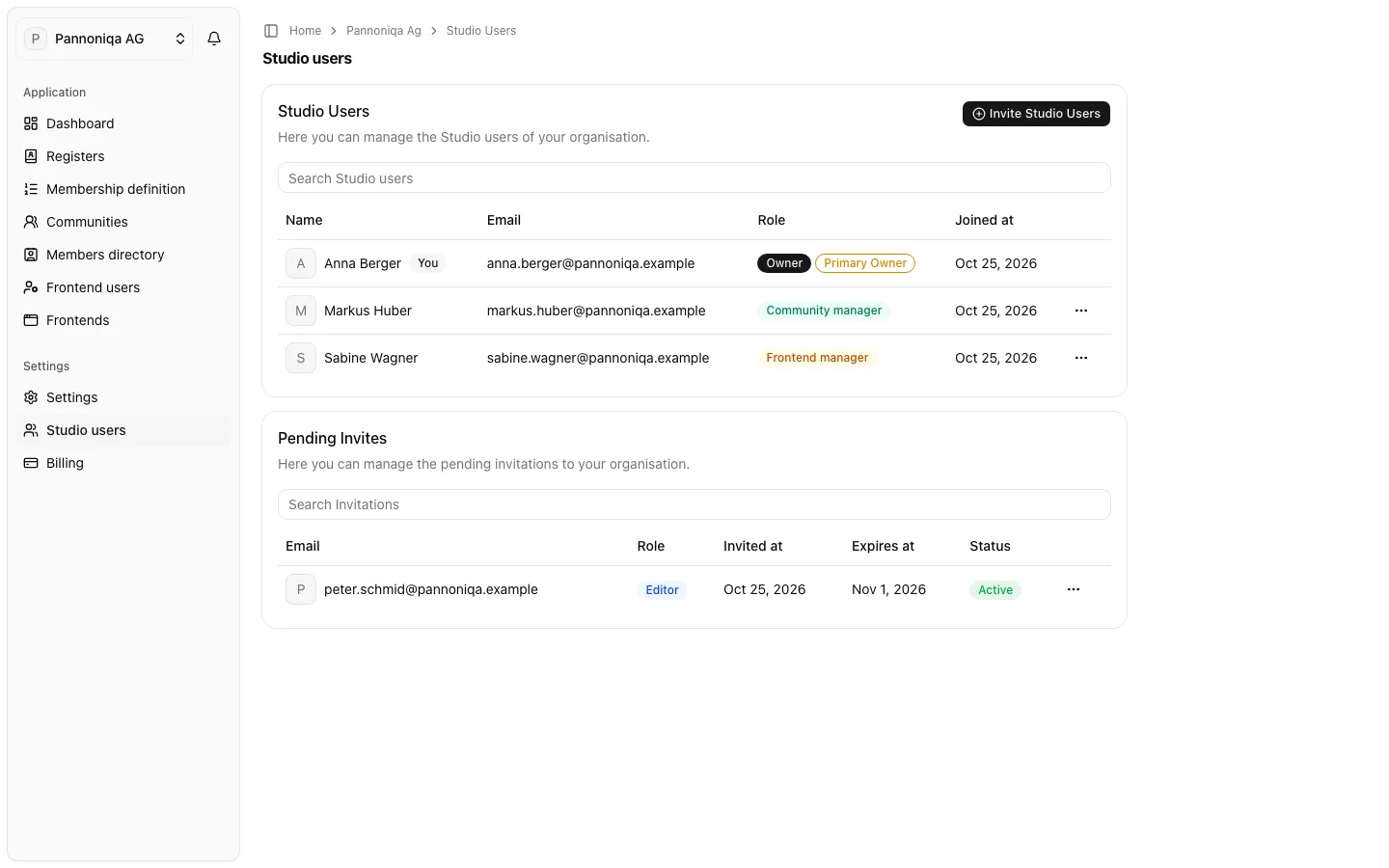
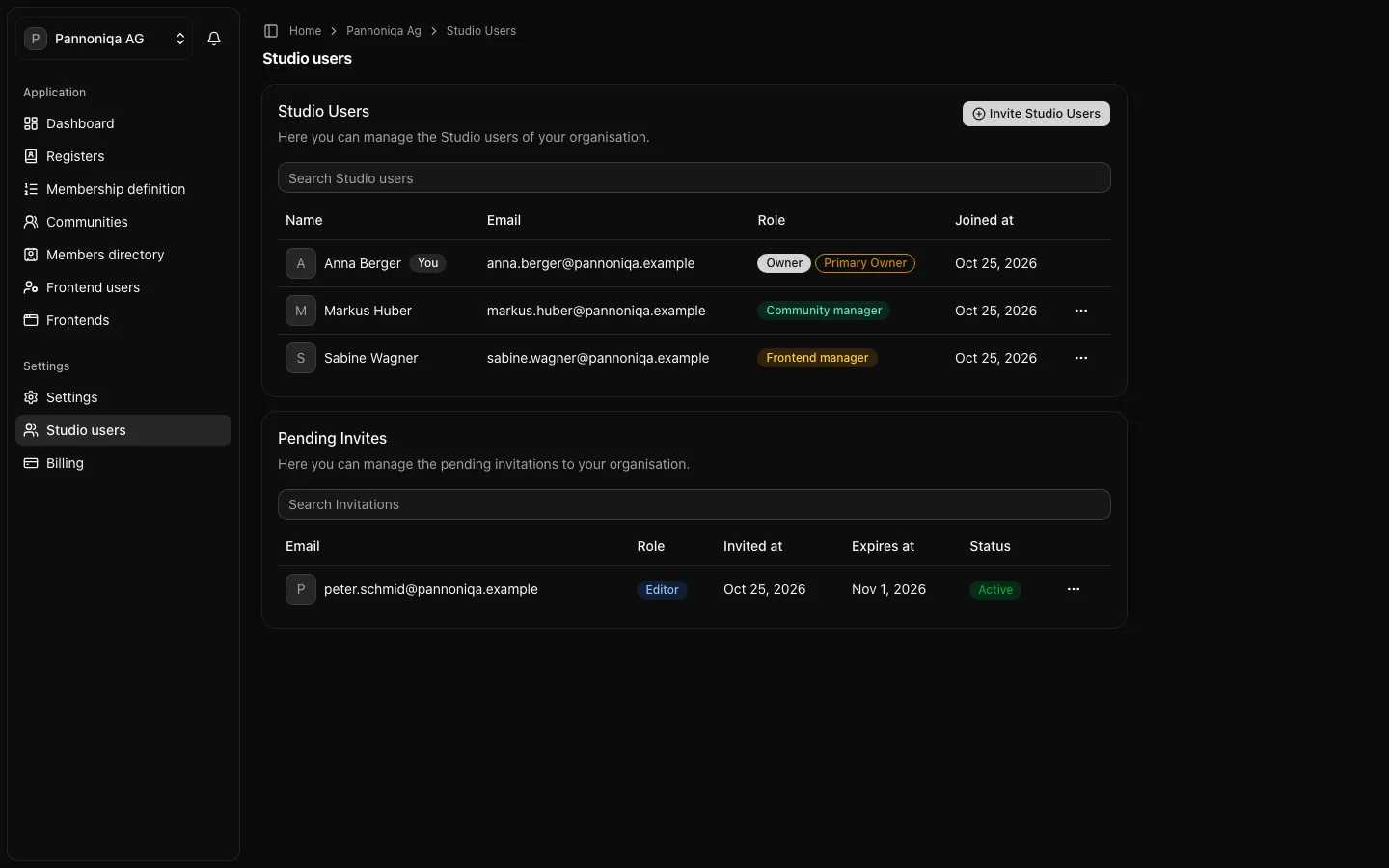
The roles are ranked in this order, "Owner" first. At Pannoniqa AG, Anna Berger is the owner, Markus Huber keeps the registers and communities as "Community manager", and Sabine Wagner looks after the "Pannoniqa Portal" and the "Pannoniqa App" as "Frontend manager".
One organisation can have several owners. The primary owner, marked "Primary Owner" in the list, is the one who cannot leave and who may change everyone's role.
Invite Studio users
- Open "Studio users" in the sidebar.
- Choose "Invite Studio Users".
- Enter the email address and choose the role. "Add another one" adds a row for the next person.
- Choose "Send Invites".
You can invite with a Studio role ranked below your own; an "Owner" can also invite owners. Each person receives an email and joins the organisation by accepting it, see Sign in. Until then they are listed under "Pending Invites".
Manage pending invitations
Under "Pending Invites", each invitation shows its role, when it was sent and when it expires. An invitation lapses 7 days after it was sent or last renewed. The menu of an invitation offers:
- "Update Invitation": change its Studio role.
- "Renew Invitation": shown when the invitation has expired or "Needs renewal", for example because whoever sent it may no longer send it.
- "Remove Invitation": the person can no longer join with it.
Whoever renews an invitation or changes its role becomes its inviter. You can manage the invitations you could send yourself.
Change a Studio user's role
- In the list, open the menu next to the Studio user and choose "Change Role".
- Under "Studio role", pick the new role.
- Choose "Update Role".
An "Owner" changes the roles of Studio users ranked below them; the primary owner changes anyone's. The change applies at once: the Studio user's sidebar shows only what the new role allows.
Remove a Studio user
- Open the menu next to the Studio user and choose "Remove from Organisation".
- Confirm with "Remove Studio User from Organisation".
They lose access to the organisation at once. Their own Studio account stays.
Transfer the ownership
The primary owner can make another Studio user the primary owner, for example before leaving the organisation.
- Open the menu next to the Studio user and choose "Transfer Ownership".
- Choose "Send Verification Code". The Studio sends a 6-digit code to your email address.
- Enter the code and choose "Verify Code".
- Choose "Transfer Ownership".
You stay an "Owner", but you are no longer the primary owner.